Imagine cruising down the road with your favorite playlist setting the perfect vibe, or seamlessly taking a hands-free call without a hitch. Sounds ideal, right?
Connecting your phone to your car isn’t just about convenience; it’s about making every drive safer, smarter, and more enjoyable. Whether you’re a tech enthusiast eager to optimize your driving experience or simply someone looking to make those daily commutes more bearable, this guide is for you.
You’ll discover the simple steps to transform your car into a smart, connected vehicle. Ready to drive smarter? Let’s get started!
Understanding Compatibility
Connecting your phone with your car enhances your driving experience. Ensure Bluetooth is enabled on both devices. Follow the car’s manual to pair them, allowing seamless access to music and navigation.
Connecting your phone to your car can enhance your driving experience. Understanding compatibility is crucial. It ensures smooth integration between your devices. Not all phones work with every car system. Compatibility depends on several factors. Knowing these can prevent frustration.
Check Your Car’s System
Identify the technology in your car. Most modern cars use Bluetooth. Some have Apple CarPlay or Android Auto. These systems allow phone integration. Check your car’s manual for specifics.
Understand Your Phone’s Features
Phones come with varying features. Some support Bluetooth, others may have NFC. Older models might lack these. Check your phone’s settings. Ensure it has the necessary technology.
Verify Software Versions
Software version affects compatibility. Ensure both car and phone software are updated. Updates fix bugs and improve connectivity. Check for any available updates.
Consult Manufacturer Websites
Manufacturers provide compatibility lists. These show which phones work with their cars. Visit the car manufacturer’s website. Look for your phone model on the list.
Explore Third-party Apps
Some apps facilitate phone-car connection. They enhance compatibility. Browse app stores for suitable apps. Read reviews to ensure reliability.

Credit: www.instagram.com
Bluetooth Connection
Linking your phone to your car via Bluetooth is simple. Activate Bluetooth on both devices and initiate pairing. Follow on-screen prompts to complete the connection.
Connecting your phone to your car via Bluetooth can significantly enhance your driving experience, offering hands-free calls, music streaming, and navigation. This seamless connection allows you to keep your eyes on the road and your hands on the wheel. But how do you ensure a smooth Bluetooth connection between your phone and car?
Enabling Bluetooth On Your Phone
First, ensure Bluetooth is enabled on your phone. This usually involves navigating to the settings menu and locating the Bluetooth option. Once found, toggle it on. Have you ever wondered why your phone sometimes doesn’t connect? It could be because your phone’s Bluetooth is off. Make sure the Bluetooth icon appears on your phone’s status bar.
Pairing Your Phone With Your Car
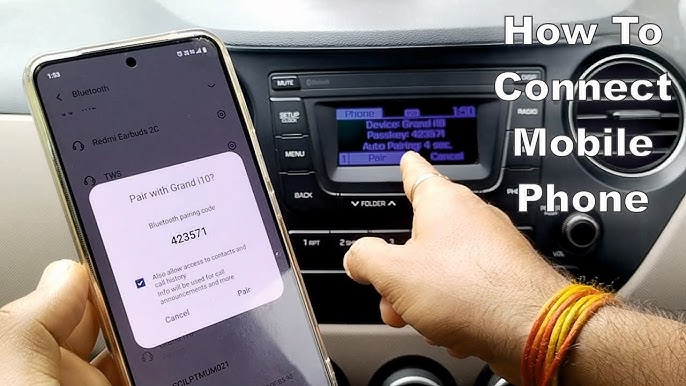
Once Bluetooth is enabled, it’s time to pair your device with your car. Access your car’s infotainment system and select the Bluetooth or phone settings. Your car should display a list of available devices. Select your phone from the list. Follow the prompts to confirm the connection on both your phone and car. Consider the last time you connected a new device. It’s usually straightforward, but remember to check the pairing code matches on both devices.
Troubleshooting Common Bluetooth Issues
If you encounter issues, don’t worry—there are solutions. Ensure your phone’s software is up-to-date; outdated software can cause connectivity problems. Still facing issues? Try turning Bluetooth off and on again on both your phone and car. This simple step often resolves minor glitches. Have you ever experienced a stubborn connection problem? Resetting your phone or car’s Bluetooth settings can sometimes fix persistent issues. Don’t forget to reconnect once you’ve reset. By understanding these steps, you can ensure a smooth and efficient Bluetooth connection every time you get in your car.
Using Usb Connection
Plug your phone into your car using a USB cable. This connection allows for easy music playback and charging. It’s a simple way to enjoy your phone’s features while driving.
Connecting your phone to your car using a USB connection is not only straightforward but also highly efficient. This approach provides a stable and fast link that enhances your driving experience by allowing you to access your phone’s features without interruption. Let’s explore how you can set up this convenient connection and why it might be a better choice than Bluetooth.
Locating Usb Ports In Your Car
First, find the USB ports in your vehicle. Most modern cars have them in accessible locations such as the center console, dashboard, or glove compartment. If you’re unsure where to look, check your car’s manual. It usually includes a detailed map of the vehicle’s interior, highlighting all available ports. Have you ever discovered an unexpected USB port in your car? It feels like finding a hidden treasure, especially when you’re low on battery and need to charge your phone.
Setting Up Usb Connection
Once you locate the USB port, plug one end of your USB cable into your phone and the other into the car’s USB port. Ensure your car is on, as some ports may not provide power when the engine is off. Your phone will likely prompt you to select a connection type, such as charging only or transferring files. Choose the option that enables media transfer, often labeled as “USB for media.” This setup allows you to access music, podcasts, and navigation apps directly from your car’s infotainment system. Isn’t it satisfying when technology just works seamlessly?
Advantages Of Usb Over Bluetooth
Why choose USB over Bluetooth? For starters, USB connections offer faster data transfer rates. This means fewer delays when streaming music or using navigation apps. USB connections also provide the dual benefit of charging your phone while it’s connected. Bluetooth, on the other hand, can drain your phone’s battery faster. Have you noticed the clarity of sound when using a USB connection compared to Bluetooth? It’s often crisper and more reliable, making your favorite tunes sound even better. USB connections are less prone to interference, ensuring a stable connection regardless of how many devices are nearby. Isn’t it reassuring to know your connection won’t drop unexpectedly?
Connecting Via Android Auto
Easily connect your phone to your car using Android Auto. First, ensure your phone has the Android Auto app installed. Next, plug your phone into the car’s USB port, and follow the prompts on your car’s display to finish the setup.
Enjoy hands-free access to navigation, music, and calls.
Connecting via Android Auto Imagine driving with a seamless connection between your phone and car, where your favorite apps, navigation, and music are just a voice command away. Android Auto is designed to make this a reality, providing a safer and smarter way to interact with your phone while driving. Whether you’re navigating through unknown streets or just trying to find the perfect soundtrack for your road trip, Android Auto has got you covered.
Installing Android Auto App
To get started, you need the Android Auto app on your phone. Head to the Google Play Store and search for “Android Auto.” Download and install it just like any other app. Once installed, open the app and grant the necessary permissions for it to function properly. It’s a quick setup, and you’ll be ready to connect your phone to your car in no time.
Setting Up Android Auto
After installing the app, connect your phone to your car using a USB cable. Ensure your car supports Android Auto and that it’s enabled in your car’s infotainment system. Follow the on-screen prompts to pair your device. Once connected, you’ll see Android Auto on your car’s display. Customize the interface to suit your preferences, making your driving experience smooth and personalized.
Features Of Android Auto
Android Auto enhances your driving experience with intuitive features. Use Google Maps for navigation, providing real-time traffic updates and alternative routes. Enjoy your favorite playlists from Spotify or Pandora without needing to touch your phone. You can even send and receive messages using voice commands, keeping your hands on the wheel and eyes on the road. How do these features change the way you drive? Reflect on how Android Auto can make your journeys more efficient and enjoyable. With Android Auto, the road is yours, and the possibilities are endless.
Connecting Via Apple Carplay
Connecting your phone to your car is simple with Apple CarPlay. Ensure Bluetooth is on, then plug your phone into the car’s USB port. Follow prompts on your car’s screen to complete the setup. Enjoy hands-free calls, navigation, and music while driving.
Connecting your phone to your car makes driving easier. Apple CarPlay is a popular choice for iPhone users. It lets you access apps and features on your car’s display. With CarPlay, you can make calls, send texts, and use maps. It also allows you to listen to music hands-free. Follow these simple steps to connect via Apple CarPlay.
Activating Apple Carplay
First, ensure your car supports Apple CarPlay. Check your car’s manual or with the manufacturer. Next, make sure your iPhone is updated. iOS 7.1 or later is required for CarPlay. Use your car’s USB port to connect your iPhone. Some cars also support wireless CarPlay. Enable Siri on your iPhone for voice commands. Once connected, your car’s display should show the CarPlay interface.
Setting Up Carplay
After connecting, your iPhone will prompt you to set up CarPlay. Follow the on-screen instructions. Choose which apps you want to display on CarPlay. You can rearrange these apps for easy access. To customize CarPlay, go to Settings on your iPhone. Tap “General” and then “CarPlay.” Here, you can adjust settings and preferences. Your car’s display will now mirror your selected apps.
Benefits Of Using Apple Carplay
Apple CarPlay offers many benefits. It provides safer phone use while driving. You can use voice commands to control apps. This keeps your hands on the wheel and eyes on the road. CarPlay integrates seamlessly with your iPhone. It offers easy access to maps, messages, and music. You can also enjoy a familiar interface on your car’s display. This makes navigation and communication effortless. CarPlay enhances your driving experience.

Credit: www.carplaylife.com
Voice Command Integration
Voice Command Integration in cars has become a game-changer for drivers who crave convenience and safety. Imagine being able to control your music, send messages, or navigate without taking your hands off the wheel. With voice command integration, your drive can be as seamless as a conversation with a friend. But how do you make the most of this technology in your vehicle? Let’s dive into how you can use Siri with CarPlay and Google Assistant with Android Auto.
Using Siri With Carplay
Siri with CarPlay allows you to make calls, send texts, or ask for directions with just your voice. Simply say “Hey Siri” or press the voice command button on your steering wheel. You can ask Siri to play your favorite songs, find nearby coffee shops, or remind you of upcoming appointments.
Feeling adventurous? Ask Siri to shuffle your playlist or find a new podcast that suits your mood. It’s like having a personal assistant right in your car. Imagine the time saved and distractions reduced when you use Siri to manage your tasks on the go.
Utilizing Google Assistant With Android Auto
With Google Assistant on Android Auto, you can maintain focus on the road while managing daily tasks. Start by saying “Okay Google” or pressing the voice button on your steering wheel. Whether you need directions to a new restaurant or want to reply to a text, Google Assistant has got you covered.
Consider using Google Assistant to check the weather before a road trip or to play a podcast that keeps you engaged during long drives. It’s not just about convenience; it’s about transforming your driving experience into something smarter and safer.
Have you ever wondered how much more productive your commute could be with voice commands? Try integrating these powerful tools into your drive, and see the difference it makes in your daily routine.
Maintaining Connection Quality
Ensure stable connection by keeping Bluetooth on both devices active. Avoid interference by minimizing electronic device usage in the car. Regularly update your phone’s software for optimal performance.
Connecting your phone to your car enhances your driving experience. It allows for seamless access to music, navigation, and hands-free communication. To enjoy these features, maintaining connection quality is crucial. Poor connection can lead to dropped calls or music interruptions. Several factors ensure a stable connection between your phone and car.
Regular Software Updates
Software updates improve connection quality. They often fix bugs and enhance compatibility. Check your phone settings for update notifications. Car systems may require updates too. Regularly visit the manufacturer’s website for the latest software. Updating both devices ensures smooth interaction.
Avoiding Interference
Interference can disrupt a connection. Keep your phone away from other electronic devices. Devices like microwaves or Wi-Fi routers can cause interference. Also, avoid areas with heavy electrical activity. These steps minimize connection issues. Proper placement of your phone is vital for maintaining a strong link. These practices improve the connection between your phone and car. Enjoy uninterrupted music and calls while driving.

Credit: www.youtube.com
Safety Tips
Connecting your phone to your car offers convenience and functionality. Yet, safety remains a top priority. Distractions from devices can lead to accidents. Follow these safety tips to ensure a secure driving experience.
Minimizing Distractions
Limit interactions with your phone while driving. Set up your phone before you start driving. Use voice commands to make calls or send messages. Enable “Do Not Disturb” mode to silence notifications. Keep your phone in a fixed holder, not in your hand.
Ensuring Safe Usage
Familiarize yourself with your car’s infotainment system. Practice using it while parked. Ensure all updates are installed for your phone and car system. This helps with compatibility and security. Avoid lengthy tasks on the phone while driving. Pull over if necessary.
Frequently Asked Questions
How Do I Pair My Phone To My Car?
Enable Bluetooth on your phone. Access your car’s Bluetooth settings. Select your phone from the list. Enter any required passcodes. Confirm pairing on both devices. Ensure both devices are connected.
How Do I Connect My Phone To Sync In My Car?
Enable Bluetooth on your phone. Search for your car’s sync system in Bluetooth settings. Select it to pair. Confirm the pairing code. Your phone should now be connected and ready to sync with your car.
How Do I Pair My Iphone With My Car?
Enable Bluetooth on your iPhone. Access your car’s Bluetooth settings. Select your iPhone from the device list. Confirm pairing by entering the PIN displayed in your car’s system. Ensure both devices have Bluetooth active. Enjoy hands-free connectivity and audio streaming.
How Can I Get My Cell Phone To Work In My Car?
Use a car mount to secure your phone. Connect via Bluetooth or USB for calls and music. Ensure your car’s system is compatible. Utilize apps like Android Auto or Apple CarPlay for navigation and controls. Keep your phone charged with a car charger for uninterrupted use.
Conclusion
Connecting your phone to your car enhances your driving experience. You can play music, navigate easily, and take calls safely. Understanding your car’s system makes it all simpler. A few minutes can change your daily commute. Enjoy the ease of technology at your fingertips.
Be sure to follow safety tips while driving. Stay connected, yet focused on the road. Explore your car settings for more features. Discover what works best for you. Make your trips more enjoyable and stress-free. Embrace this tech convenience every day.